A steam disk write error can appear when Steam reports that an update or installation failed. Valve says the specific reason appears in parentheses at the end of its update or install message, so read that line before changing anything. The message alone does not establish that your drive is failing. Start with reversible checks that keep installed games in place, then compare another library location if the problem persists; this helps separate Steam's download state, folder access, and game files from a possible drive problem.
What does a disk write error on Steam mean?
Valve covers this under its update and installation error guidance. Steam's message says whether an update or installation failed and puts the specific reason in parentheses. Read the whole message and note which game and library are involved.
That context helps you choose the next check: verifying files is relevant to an installed game, while a fresh install gives you a way to test another library. If your main symptom is a slow download rather than an error, see slow Steam download fixes.
How should you start troubleshooting?
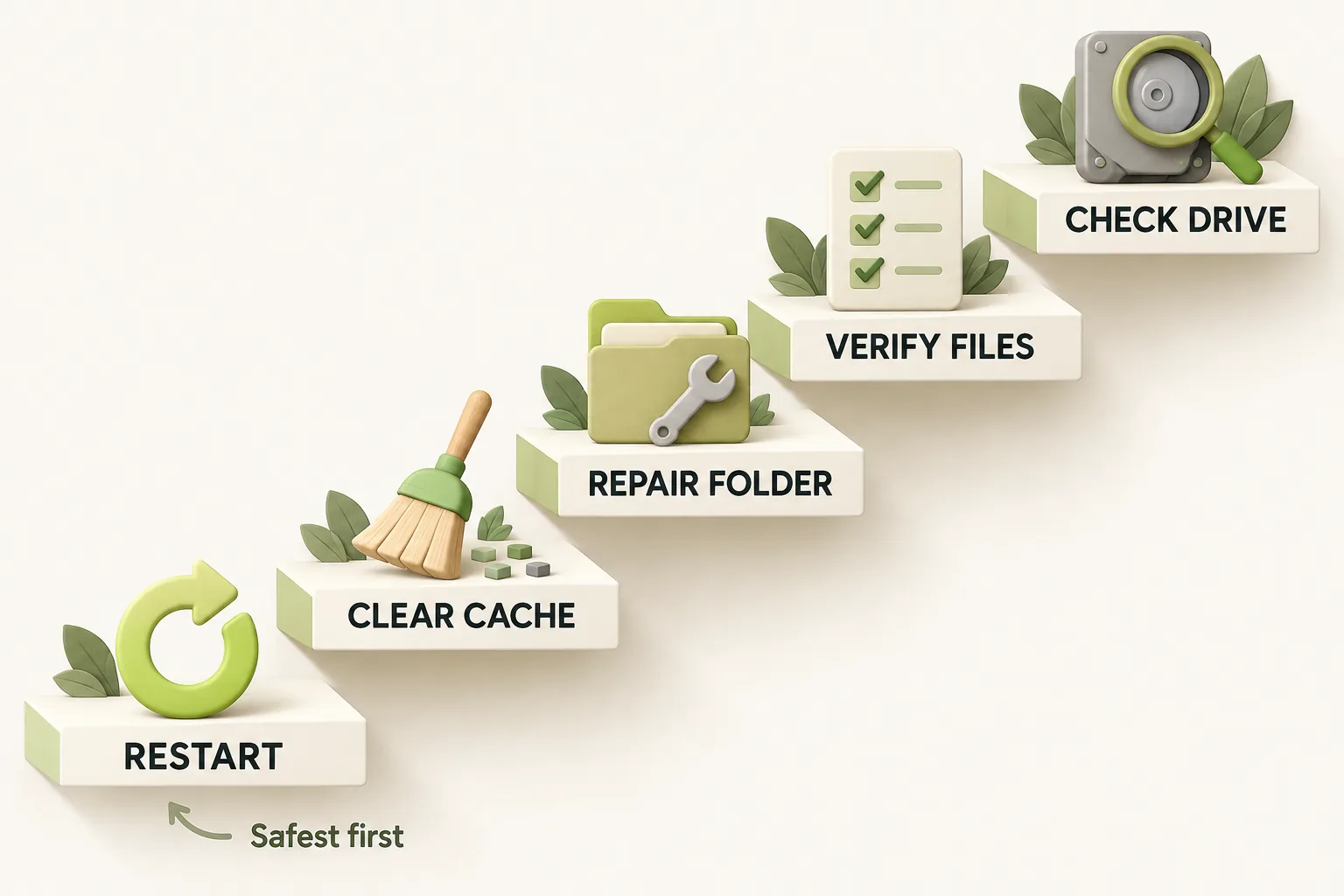
Try these checks in order. Retry the same install or update after each one, and stop when it completes.
- Restart Steam and the computer to release file locks and clear temporary system states.
- Clear Steam's download cache, then log in again.
- Repair the Steam library folder used by the affected game.
- If you are updating an installed game, verify that game's files.
- Temporarily choose another download region and retry.
- Test an install in a library on another drive.
- If the problem persists, check the drive for errors and review software that may interfere with Steam.
How do you clear the cache and repair a library folder?
Open Steam -> Settings -> Downloads -> Clear Cache. Valve says this does not affect installed games, though you will need to log in to Steam again. For the library folder, use Steam -> Settings -> Storage -> ... -> Repair Folder. Valve says library folders must be writable by all users for updates, and those permissions can break.
When should you verify files or change download region?
For an update failure, go to Library -> right-click the game, or use its gear icon -> Properties -> Installed Files -> Verify integrity of game files. Valve says one or more files may fail verification normally because they are local configuration files. Avoid verifying during defragmenting or virus scans, and do not verify several games at once.
If the install or update still fails, try Steam -> Settings -> Downloads -> Download Region. Valve suggests a temporary switch because regional content servers can be slow, overloaded, or failing. Verification and a region change are checks, not guarantees that the next attempt will succeed.
When is another drive worth testing?
Add a library on another drive through Steam -> Settings -> Storage -> +, then test an install there. If it works, look more closely at the original library or drive; that comparison alone does not identify a failed component. For an installed game, Properties -> Installed Files -> Move Install Folder lets you move it without a new download.
This test concerns where Steam stores a game on your computer. If you are separately comparing handheld hardware, Steam Deck model differences covers that decision.
When should you stop and check the drive?
If the error persists after the reversible checks, Windows drive error checking is available at This PC -> right-click the drive -> Properties -> Tools -> Error checking. Valve also lists disabling overclocking, which can cause memory and file corruption, and checking RAM with Windows Memory Diagnostic by running mdsched. These are later checks, not proof that the drive or memory is faulty.
| What you observe | Next step | What to keep in mind |
|---|---|---|
| An update fails for an installed game | Verify that game's files | Verification may report local configuration files that can be safely ignored. |
| The affected library still has trouble | Use Repair Folder | Library permissions can break. |
| An install works in a library on another drive | Check the original drive for errors | The comparison does not prove the drive has failed. |
| Error checking reports a drive problem | Stop repeated install attempts and protect your data | Resolve the reported problem before relying on that drive. |
Antivirus software can affect disk and network operations. Valve suggests Steam exceptions, such as excluding Steam Library folders from live monitoring, and describes disabling interfering software temporarily for testing. Review those possibilities if drive checks do not explain the error.
The bottom line
Start with a restart, then check the cache, library folder, and affected game before trying another drive. If a drive check reports trouble, stop repeating installs and protect your data before continuing.
How we researched this
This guide is built from Valve's official Steam Support articles, steamdeck.com specifications and Steam news posts, opened and checked on 16 October 2026. Search demand for "steam disk write error" comes from SEMrush US keyword data captured in October 2026. We did not run our own device tests for this article, so every specific step, number and date is attributed to the source that states it. A first draft was prepared with AI writing assistance and then fact-checked line by line against those sources by the editorial team.
Our editorial policyYour questions, answered
how to fix steam disk write error?
Start by restarting Steam and your computer, then retry the failed install or update. If it fails again, clear the download cache and repair the affected library folder. Verify files for an installed game, try another download region, and test a library on another drive. A drive error check is a later step if the simpler checks do not resolve it.
what does disk write error mean on steam?
It means Steam reported a specific reason for a failed update or installation. Valve says that reason appears in parentheses at the end of the message, so read the complete wording before choosing a fix. The message does not, by itself, tell you that the physical drive is failing; folder access and other factors are worth checking.
does verifying game files fix disk write error?
It can help with an affected installed game, but it is not a guaranteed fix. Use the game's Installed Files settings to verify its files, then retry the update. Valve says it is normal for one or more local configuration files to fail verification, so that result alone should not send you into more disruptive repairs.
how to repair steam library folder?
In Steam, open Settings -> Storage -> ... -> Repair Folder for the library involved. Valve says a Steam library must be writable by all users to update and that its permissions can break. Repair the relevant folder, then retry the same game so you can tell whether that step addressed the failure.
does clearing steam download cache delete games?
No, Valve says clearing the download cache does not affect installed games. Open Steam -> Settings -> Downloads -> Clear Cache, then expect to log in to Steam again. This makes it a useful early check when an install or update fails, while leaving your existing game installations in place.