If your ps5 controller not connecting search brought you here, start with the cable and the console's pairing steps. A DualSense that charges through a cable has not necessarily completed the pairing sequence. Connect the controller to the powered-on PS5 with the included USB cable and press the PS button. If that does not work, this guide separates cable checks, reconnection, wireless pairing, software, and reset steps so you can identify the next useful action and know when to use PlayStation Repairs.
What should you check first?
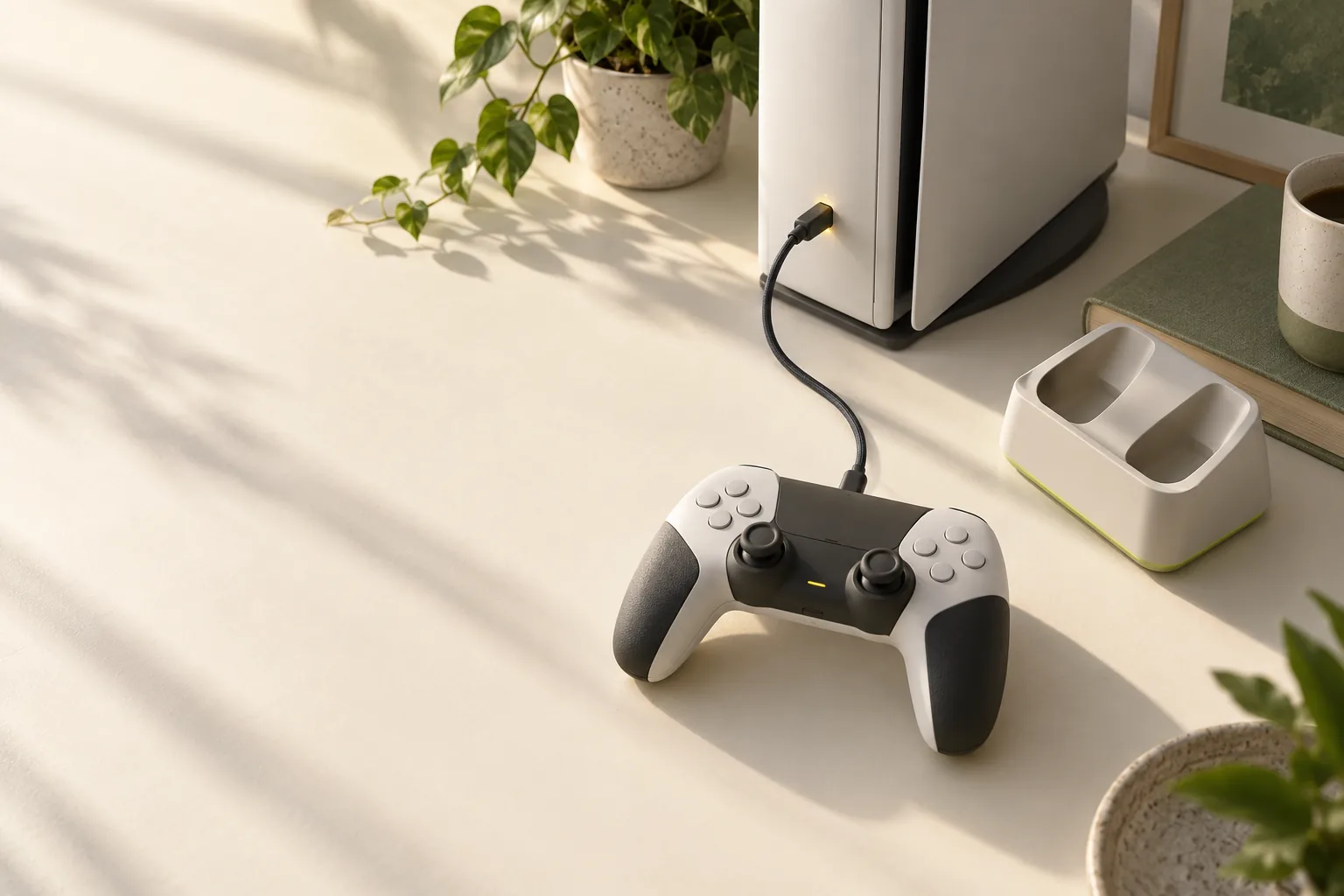
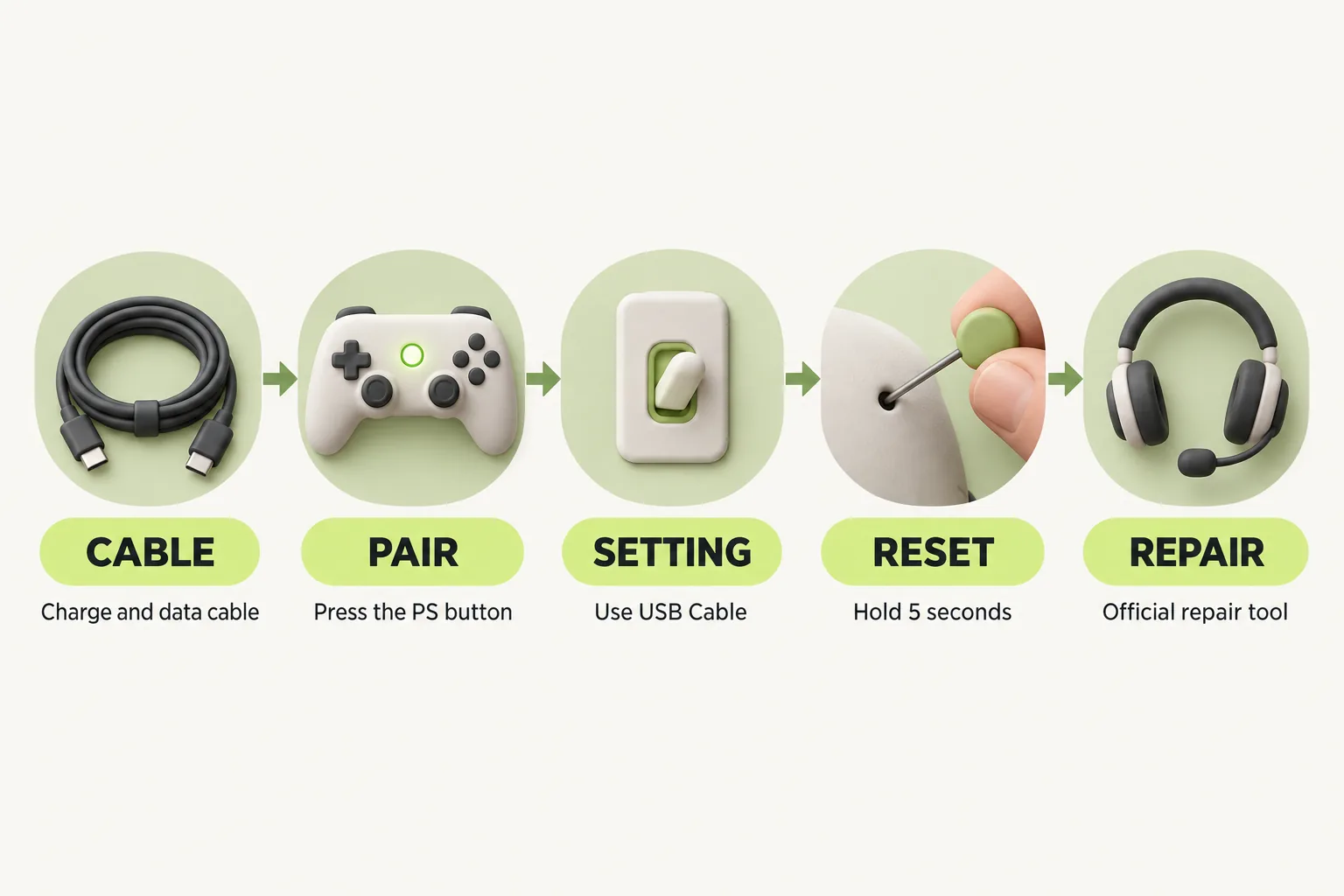
Turn on the PS5 and connect the DualSense with the included USB cable. If the controller is off, press the PS button. During pairing, Sony says the light bar blinks and then the player indicator lights up. That sequence gives you a more useful checkpoint than assuming a connected cable has paired the controller.
If your immediate question is whether the controller is charging, follow the DualSense charging checks on the console. For a connection problem, return to the pairing sequence above and check whether the player indicator lights up. Keeping those two questions separate helps you choose the next step.
| What you know | Next check | Why this check comes next |
|---|---|---|
| The controller is connected by USB, but pairing has not completed | Use the included USB cable and press the PS button | This is Sony's PS5 pairing sequence |
| You are not using the included cable | Switch back to the included USB cable | Sony's PS5 pairing steps specify the included USB cable |
| The controller was used on another device | Connect it to the PS5 with a compatible USB cable and press the PS button | Sony gives this sequence for reconnecting it |
| A paired controller has a weak signal | Check Communication Method while it is connected with the included USB cable | Use USB Cable is Sony's setting for this situation |
| Pairing problems or disconnects continue after a reset | Use PlayStation Repairs | This is Sony's repair diagnostic endpoint |
You do not need to identify a special PS5 USB port for a DualSense. Sony lists controllers as compatible with the console's USB ports and gives no port-specific requirement. Focus on the pairing sequence and cable type before looking for a different port.
Can the USB cable stop a DualSense from pairing?
It is worth ruling out. Sony's initial PS5 pairing steps specify the included USB cable, and its reconnection steps call for a compatible USB cable. If you have moved away from the included cable, switch back to it before trying other steps.
With the PS5 on, connect the included cable and press the PS button if the controller is off. Watch for the pairing sequence Sony describes: the light bar blinks, then the player indicator lights up. If you get only partway through that sequence, keep the cable question open rather than treating the USB connection alone as proof of pairing.
There is a separate setting to consider if you can operate the console and the controller signal is weak. Go to Settings > Accessories > Controller (General) > Communication Method, connect with the included USB cable, and select Use USB Cable. Sony says that when Use Bluetooth is selected, the controller communicates over Bluetooth even while a USB cable is connected.
If your question concerns power from a computer, see charging the controller from a computer. To pair with the PS5, use the console pairing steps here. Charging and establishing a controller connection answer different questions.
How do you reconnect or pair another controller?
If the DualSense was used on another device, reconnect it directly to the PS5 with a compatible USB cable and press the PS button. Sony says you can remove the cable afterward and use the controller wirelessly. This is the relevant path when the controller has been connected elsewhere, so start here before considering a reset.
Pairing a second controller wirelessly uses a different sequence and requires controller 1 to operate the PS5. With controller 1, open Settings > Accessories > General > Bluetooth Accessories. Disconnect the USB cable from controller 2 and make sure its player indicator is off. On controller 2, hold the create button and PS button together until its light bar blinks, then select it on screen.
A DualSense can hold up to four pairings. If all four slots are in use, connecting another device replaces the slot you have not connected to for the longest time. That behavior can explain why a controller previously used with several devices needs to be paired again, without requiring you to infer anything from its light bar.
Keep the USB state in mind during wireless pairing. Sony says you cannot pair wirelessly or switch slots to another PS5 console while the controller is already connected using a USB cable. For the second-controller sequence, its USB cable must be disconnected before you hold the create and PS buttons.
Why does the controller keep blinking or disconnecting?
Sony describes the light bar blinking during pairing, followed by the player indicator lighting up. That information does not assign a specific fault to other blinking behavior. If the controller keeps blinking without completing the pairing sequence, use the cable and pairing checks above instead of diagnosing a problem from the blink alone.
For a controller that has connected before, first ask whether it was used on another device. If so, use a compatible USB cable to connect it to the PS5 and press the PS button, then remove the cable after it reconnects. If the issue is a weak signal while you can operate the console, check Communication Method with the included cable connected.
The setting matters because a connected USB cable does not automatically mean the controller is communicating through it. Sony says Use Bluetooth keeps communication over Bluetooth even with a cable attached. Selecting Use USB Cable under Communication Method is the official option Sony gives when the signal is weak.
If the controller remains unresponsive to the pairing steps, a reset is the next documented procedure. Turn off the PS5 before beginning it. Turning off the console, or putting it in rest mode, also turns the controller off, so check its state again when you resume the pairing sequence.
How do you reset and update the DualSense?
Use the reset procedure after the cable and relevant pairing checks. It requires the PS5 to be off and the controller's USB cable disconnected. Follow Sony's sequence in order, then reconnect the controller with the official USB cable and press the PS button.
- Turn off the PS5.
- Disconnect the controller's USB cable.
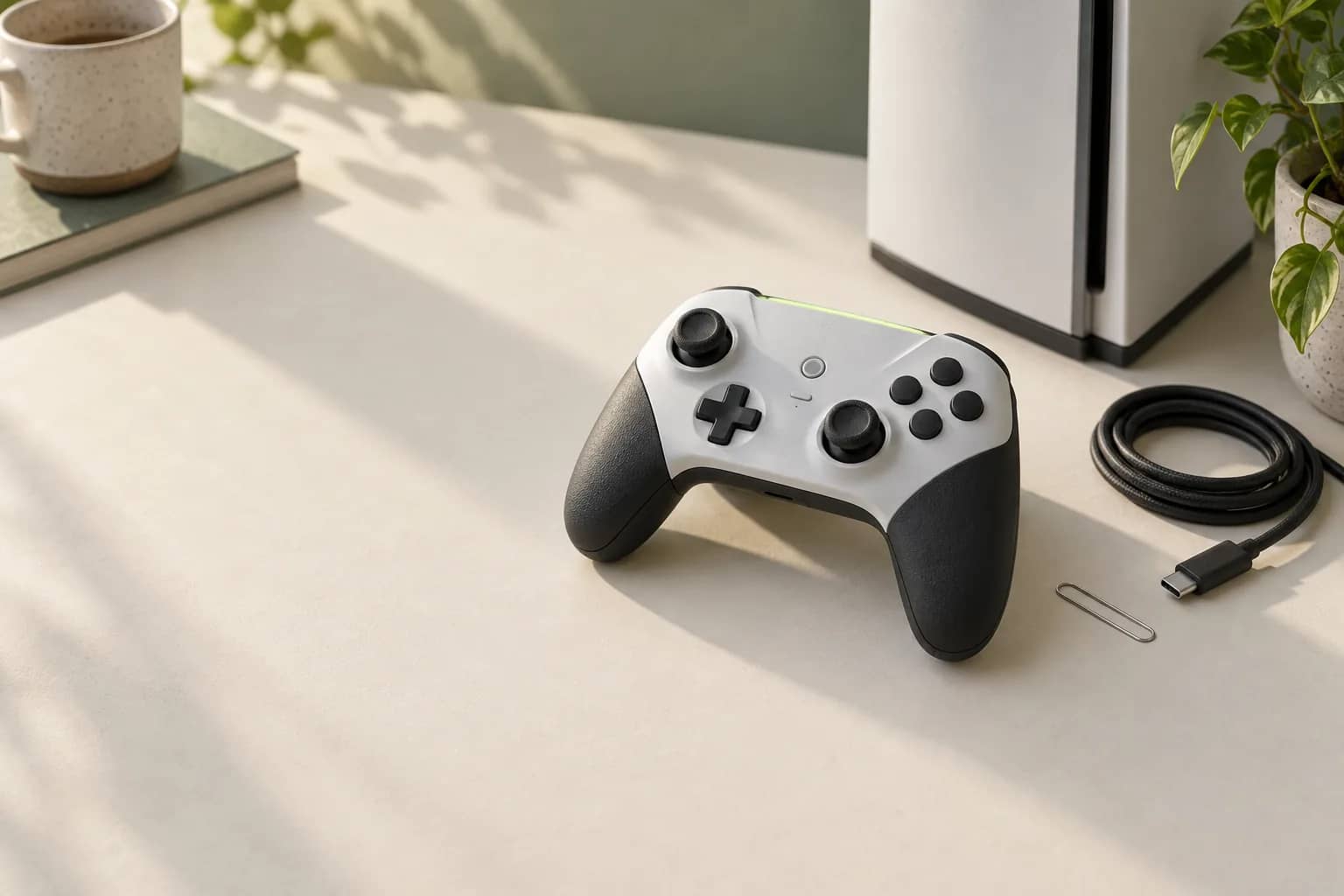
- Using a pin, press and hold the reset button inside the small hole next to the Sony logo on the back for at least 5 seconds.
- Reconnect the controller with the official USB cable and press the PS button.
If the issue continues after the reset and you can operate the console, Sony advises updating the PS5 system software to the latest version. Controller updates also arrive with PS5 system software updates. For a manual controller update, go to Settings > Accessories > Controller (General) and select DualSense Wireless Controller Device Software.
When should you use PlayStation Repairs?
If pairing problems or disconnects persist after the reset, Sony directs you to the PlayStation Repairs diagnostic tool. That is the official endpoint for this troubleshooting path. If you can still operate the PS5, complete the available system software update check first, as Sony advises after a reset.
Have the controller's serial number ready if you contact support, as Sony recommends. For a paired controller, you can view it at Settings > Accessories > General > Advanced Settings > View Serial Number. It is also printed under the QR code on the back of the controller and consists of 17 alphanumeric characters.
If you are also dealing with slow PS5 game downloads, follow those checks as a separate console issue. For the controller, the decision point remains whether the official pairing and reset sequences restore a connection. Persistent pairing trouble or disconnects after the reset lead to PlayStation Repairs.
The bottom line
Start with the included USB cable and the PS button, then check the cable label and use the reconnection steps that fit your situation. If those steps fail, follow Sony's reset procedure and available software update advice. Use PlayStation Repairs when pairing problems or disconnects continue after the reset.
How we researched this
This guide is built from Sony's official PlayStation Support pages and the DualSense instruction manuals, opened and checked on 16 October 2026. Search demand for "ps5 controller not connecting" comes from SEMrush US keyword data captured in October 2026. We did not run our own device tests for this article, so every specific step, number and date is attributed to the source that states it. A first draft was prepared with AI writing assistance and then fact-checked line by line against those sources by the editorial team.
Our editorial policyYour questions, answered
why is my ps5 controller not connecting
Start by checking whether it completes Sony's pairing sequence with the PS5 on, the included USB cable connected, and the PS button pressed. The light bar should blink during pairing and the player indicator should then light up. If it does not, make sure you are using the included USB cable, which Sony's pairing steps specify. A controller used on another device may also need to be reconnected by cable.
how do i reconnect my ps5 controller
Connect the controller to the PS5 with a compatible USB cable and press the PS button, especially if you used it on another device. Sony says you can remove the cable and use it wirelessly afterward. If you are pairing it as a second controller without a cable, you need a working first controller to open the PS5's Bluetooth Accessories screen and select it.
how to reset ps5 controller
Turn off the PS5 and disconnect the controller's USB cable first. Use a pin to hold the reset button in the small hole next to the Sony logo on the back for at least 5 seconds. Then reconnect the controller with the official USB cable and press the PS button. If the problem continues, update PS5 system software if you can operate the console.
why does my ps5 controller keep disconnecting
Sony's guidance does not identify a cause from a disconnect alone, so work through the relevant connection checks. If the signal is weak and you can use the console, connect the included USB cable and select Use USB Cable under Communication Method. Use the documented reset sequence if needed. Sony directs disconnects that persist after a reset to PlayStation Repairs.
how do i pair a ps5 controller without a cable
For a second controller, use an already working controller to open Settings > Accessories > General > Bluetooth Accessories. With the second controller's USB cable disconnected and its player indicator off, hold its create and PS buttons together until the light bar blinks, then select it on screen. Sony says wireless pairing cannot be done while that controller is connected using a USB cable.
Sources and further reading
- How to connect a DualSense wireless controller: PlayStation Support ↗
- How to troubleshoot DualSense wireless controller issues: PlayStation Support ↗
- How to use DualSense wireless controllers with PC, Mac and mobile devices: PlayStation Support ↗
- General controller settings on PS5 consoles: PlayStation Support ↗
- How to find DualSense wireless controller serial and model numbers: PlayStation Support ↗
- How to change power-saving settings on PlayStation consoles: PlayStation Support ↗
- PS5 console USB ports guide: PlayStation Support ↗