If you searched for ps5 download speed slow, first work out whether the download is progressing, stuck, or unable to start. Those symptoms point to different checks. PlayStation service alerts can explain a stuck download, while the PS5 connection test helps you examine the console's own connection. If the download will not start, Sony provides steps for the download itself, storage, and system software. Follow the symptom before changing network settings. That gives you a clearer reason for each action and helps you avoid treating every slow download as the same problem.
Could PlayStation service be causing the delay?
Start with the PlayStation status page when a download is stuck. Sony says to wait if it shows service alerts, then try again once the service is up. A status alert gives you a reason to pause troubleshooting on the console; without one, move to the download's behavior and your connection.
Keep other console problems separate from the download. If the controller also needs attention, use DualSense connection troubleshooting for that issue while you follow the download checks here.
Is the download slow, stuck, or unable to start?
Look at what the download is actually doing before choosing a fix. A transfer that progresses slowly calls for a connection check; one that will not start has specific controls in Downloads/Uploads. For a stuck download, Sony also lists service status, storage, system software, and a Safe Mode option.
| What you see | What to check next |
|---|---|
| PlayStation status shows an alert | Wait until the service is up, then try the download again. |
| The download progresses, but seems slow | Run Test Internet Connection on the PS5, then consider other devices using your network. |
| The download will not start | In Downloads/Uploads, choose Pause, then Resume for that download. |
| The download is stuck | Check service status, free storage, and system software before using Sony's Safe Mode step. |
This checklist does not promise a faster transfer. It keeps a slow transfer from being confused with a download that needs to be resumed or started again.
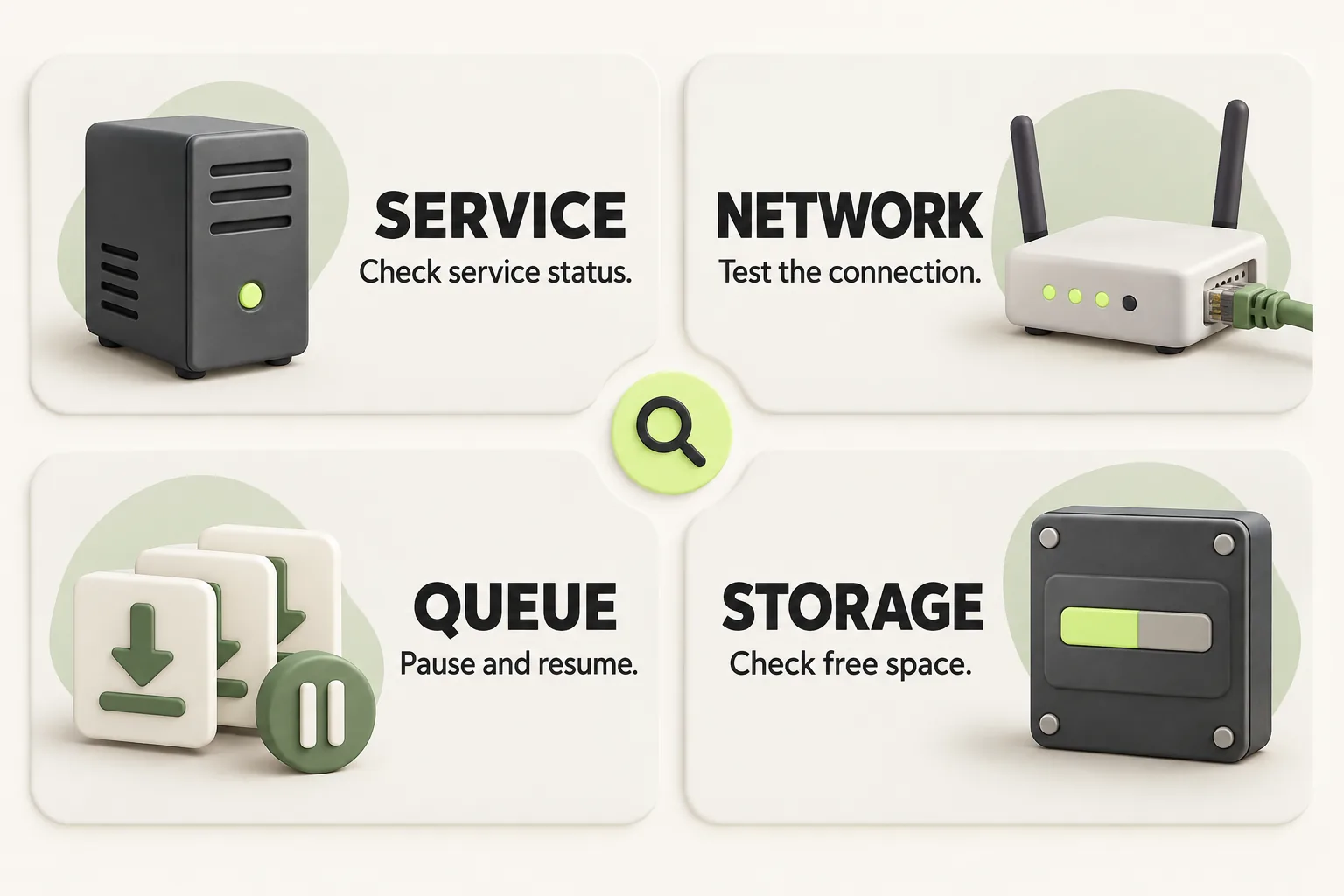
How do you troubleshoot a slow PS5 download in order?
Use this sequence to narrow the cause before changing advanced settings. Stop when a check explains the symptom, and try the download again after taking the relevant action.
- Check the PlayStation status page. If it shows an alert, wait until the service is up and try again.
- Identify whether the download is progressing slowly, stuck, or unable to start. Use the table above to choose the relevant branch.
- On the PS5, go to Settings > Network > Connection Status > Test Internet Connection. This checks the console's connection rather than relying on a result from another device.
- If the transfer is progressing slowly, consider demand from other devices on your network. Sony's Remote Play advice, which is not download-specific, includes a wired PS5 connection or 5GHz Wi-Fi.
- If the download will not start, open Downloads/Uploads in the control center, select it, and choose Pause, then Resume. If that fails, choose Cancel and Delete, then download it again from the Game Library.
- For a stuck or non-starting download, check free storage and keep system software updated. Sony also suggests starting the PS5 in Safe Mode and selecting Clear Cache and Rebuild Database.
The connection test is one piece of the diagnosis. If you are also investigating slow downloads in the Steam client, treat that as a separate device and download process rather than assuming both need the same fix.
Could Wi-Fi or other devices be the bottleneck?
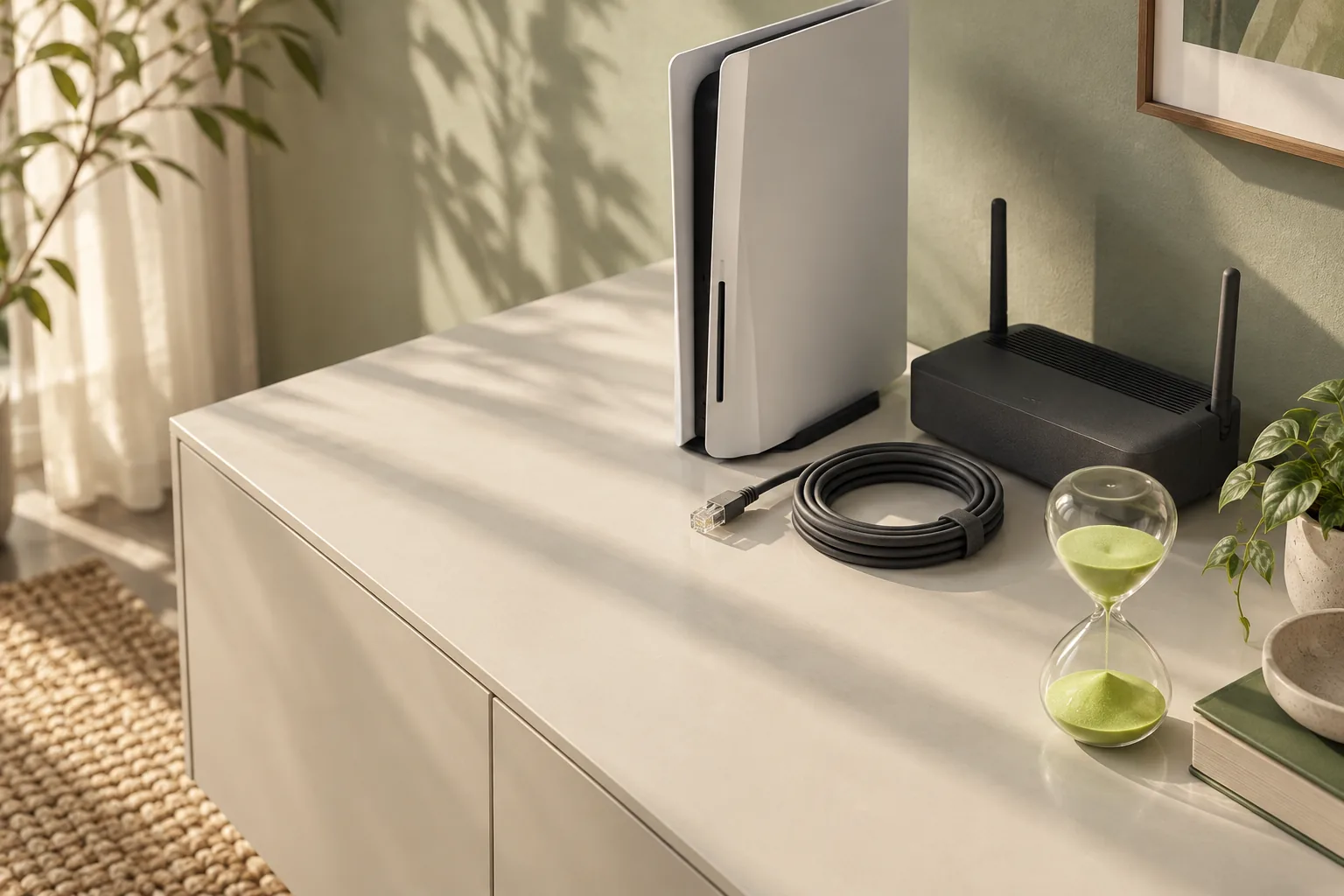
Sony's Remote Play guidance, which is not specific to downloads, recommends a wired PS5 connection. For Wi-Fi, it suggests pausing downloads on other devices, disconnecting other Wi-Fi devices, and using 5GHz Wi-Fi. That guidance is not a promise that any one change will increase game download speed.
To set up wired LAN, go to Settings > Network > Settings > Set Up Internet Connection > Set Up Wired LAN > Connect. Wi-Fi setup is in the same Set Up Internet Connection menu. Sony's Remote Play help also says that devices using a large amount of bandwidth can affect performance and advises contacting your ISP if your connection speed is insufficient.
If your network is IPv6-only, Sony says to switch the router to IPv4 because the console does not support IPv6-only connections. On PS5 Pro (CFI-7000), Sony suggests trying Wi-Fi Multi-Link Operation both on and off when you have connection issues; its control is in the access point's Advanced Settings.
What if the download still will not start?
After Pause and Resume, Sony's next download action is Cancel and Delete, followed by downloading the game again from the Game Library. Check space before retrying: Game Library > game > … (more) > View Product shows the minimum free space, while Settings > Storage shows available space. Sony also lists keeping system software updated.
For a stuck or non-starting download, Sony suggests starting the PS5 in Safe Mode and selecting Clear Cache and Rebuild Database. Follow that as a troubleshooting step for those symptoms, rather than as a general speed setting.
Will rest mode help the download continue?
To allow downloads in rest mode, go to Settings > System > Power Saving > Features Available in Rest Mode and turn on Stay Connected to the Internet. This sets up the console to stay connected; it does not establish that rest mode makes downloads faster.
For game and app auto-updates, go to Settings > Saved Data and Game/App Settings > Automatic Updates and use Auto-Download or Auto-Install in Rest Mode. Remote downloads started through PlayStation Store online or PlayStation App also need automatic downloads set up. Otherwise, the game begins downloading the next time the console is turned on.
The bottom line
Check service status, identify the download symptom, and test the PS5 connection before changing settings. Then use the step that matches what you found, and treat rest mode as a way to keep downloads available, not a speed fix.
How we researched this
This guide is built from Sony's official PlayStation Support pages and the DualSense instruction manuals, opened and checked on 16 October 2026. Search demand for "ps5 download speed slow" comes from SEMrush US keyword data captured in October 2026. We did not run our own device tests for this article, so every specific step, number and date is attributed to the source that states it. A first draft was prepared with AI writing assistance and then fact-checked line by line against those sources by the editorial team.
Our editorial policyYour questions, answered
why is my ps5 download speed so slow?
There is no single cause to assume from speed alone. Check PlayStation service status, then use the PS5 connection test to examine the console's connection. If the transfer is still progressing, consider whether other devices are using a large amount of bandwidth. If it has stopped progressing or never starts, use the download-specific steps instead.
how to make ps5 download faster?
Start by finding what is limiting the download; no setting is guaranteed to make it faster. Test the PS5 connection and consider Sony's Remote Play connection advice, which is not download-specific: a wired connection, 5GHz Wi-Fi, and reducing activity on other devices. If the download is stuck or will not start, use Sony's recovery steps for that symptom rather than changing DNS or MTU.
why is my ps5 download speed slow but internet fast?
A fast result from another device does not tell you what the PS5 connection test will show or whether the download itself is stuck. Run Settings > Network > Connection Status > Test Internet Connection on the console. Also check PlayStation service status and whether other devices are using substantial bandwidth. Choose your next step from the download's actual behavior.
how do i check my ps5 internet speed?
Use the PS5's connection test at Settings > Network > Connection Status > Test Internet Connection. It is the console-side check Sony provides in its download troubleshooting guidance. Pair it with a look at the download itself: a slow transfer, a stuck transfer, and one that will not start lead to different troubleshooting steps. A test alone does not identify every cause.
does ps5 download faster in rest mode?
Sony's guidance here does not establish a rest mode speed advantage. Rest mode is useful for allowing a download to continue when Stay Connected to the Internet is enabled under Settings > System > Power Saving > Features Available in Rest Mode. Game and app auto-updates have separate Automatic Updates settings. Check those settings if your concern is whether downloading continues while the console rests.
Sources and further reading
- How to troubleshoot game downloads from PlayStation Store: PlayStation Support ↗
- How to set up an internet connection on PlayStation consoles: PlayStation Support ↗
- How to set up auto-downloads and updates on PlayStation consoles: PlayStation Support ↗
- How to download your games and add-ons from PlayStation Store: PlayStation Support ↗
- How to troubleshoot Remote Play issues: PlayStation Support ↗
- When Remote Play isn't available: PS Remote Play (Sony Interactive Entertainment) ↗
- PlayStation Service Status: PlayStation ↗