For a ps5 controller not charging when connected to pc, check the USB cable and power source first. Sony says the DualSense can charge through a computer with a USB-standard cable, but some devices may not charge it. Bluetooth pairing or working game input does not answer whether the controller is charging. Start with a suitable cable and compatible PC port, then use Sony's Windows app to check battery level. If the result is still unclear, work through the PC power and controller steps below.
Can you charge a DualSense controller from a PC?
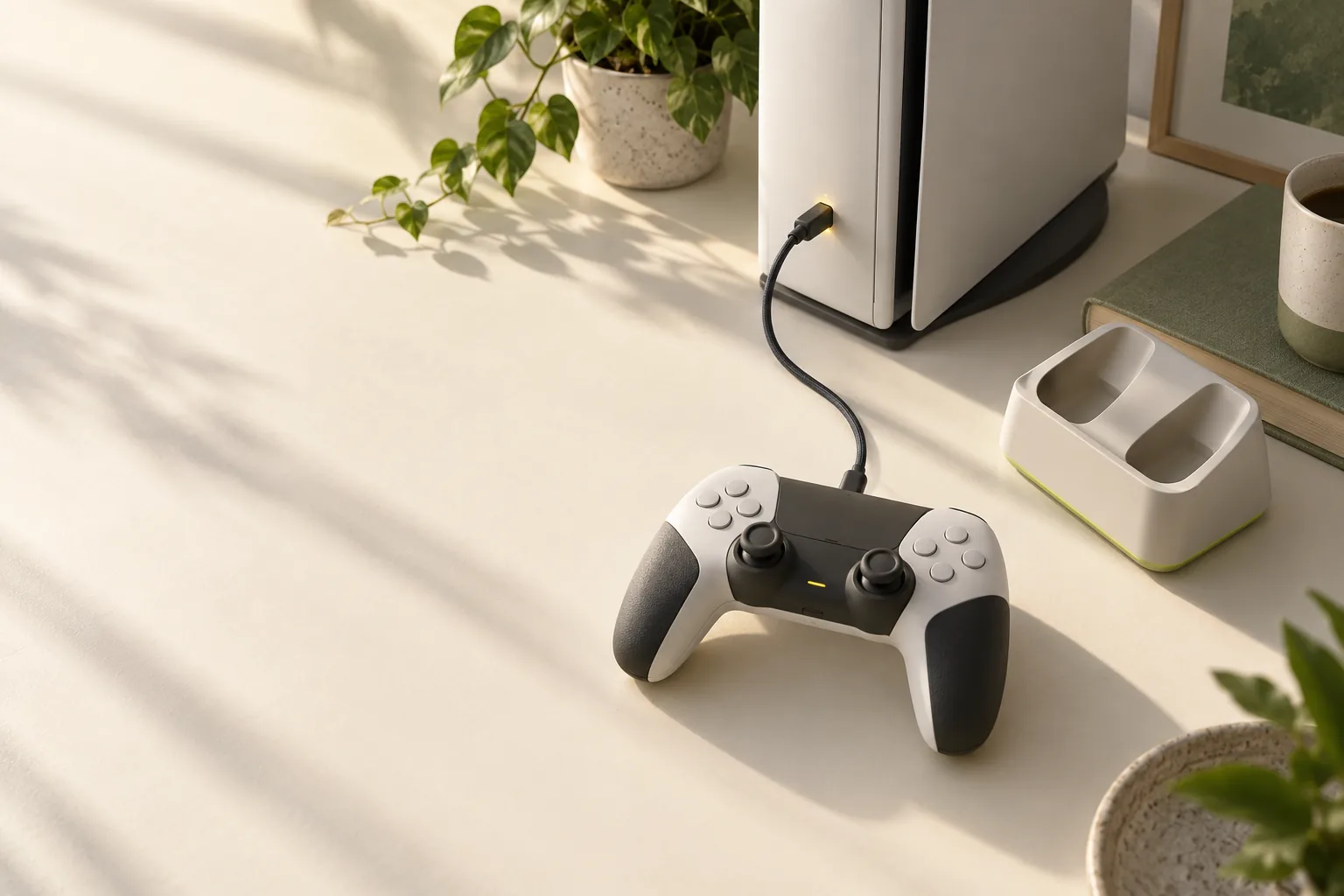
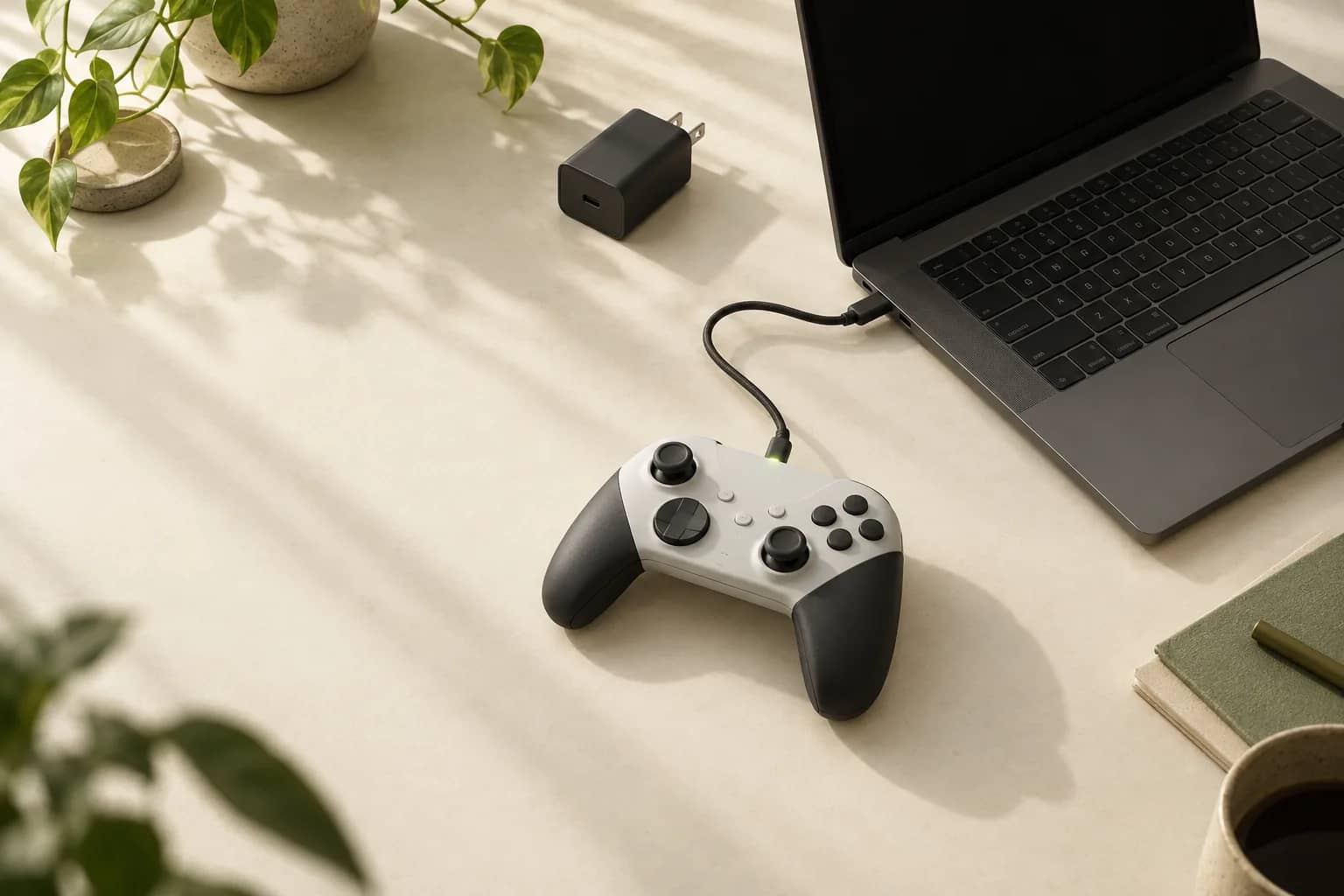
Yes. The DualSense manual says you can charge the controller by connecting a USB-standard cable to a computer or another USB device. Sony also cautions that the controller might not charge on some devices, so a USB connection by itself is not a guarantee.
Keep this check focused on the computer and its cable. If you want to troubleshoot charging through the console, use our guide to charging the controller from the PS5 itself. A console charging result may help you narrow down the problem, but the PC connection still needs its own checks.
Why can USB charging fail on a PC?
The cable is the first distinction to make. Sony specifies a charge and sync or charging and data cable and says a cable labeled charge only cannot be used. Check that the PC has a port compatible with your cable; the DualSense connects to a PC over USB with a Type-C cable.
Power and connection choices also matter. Microsoft's general Windows USB guidance says a PC may provide too little power when its battery is low or it is powering other devices. It also lists an external hub or dock and the wrong USB-C port as possible USB-C trouble points. That guidance is general, not a DualSense-specific diagnosis.
| Situation | Check next | Why |
|---|---|---|
| Cable type is uncertain | Use a charge and sync or charging and data cable | Sony says cables labeled charge only cannot be used |
| Connected through a hub or dock | Try a compatible port on the PC | Microsoft lists hubs and docks as possible USB-C trouble points |
| PC is running on battery | Connect external power and disconnect unused USB devices | Microsoft says available USB power may be insufficient |
| USB connection works, charging is unclear | Check battery level in PlayStation Accessories | The app displays the connected controller's battery level |
What should you check first?
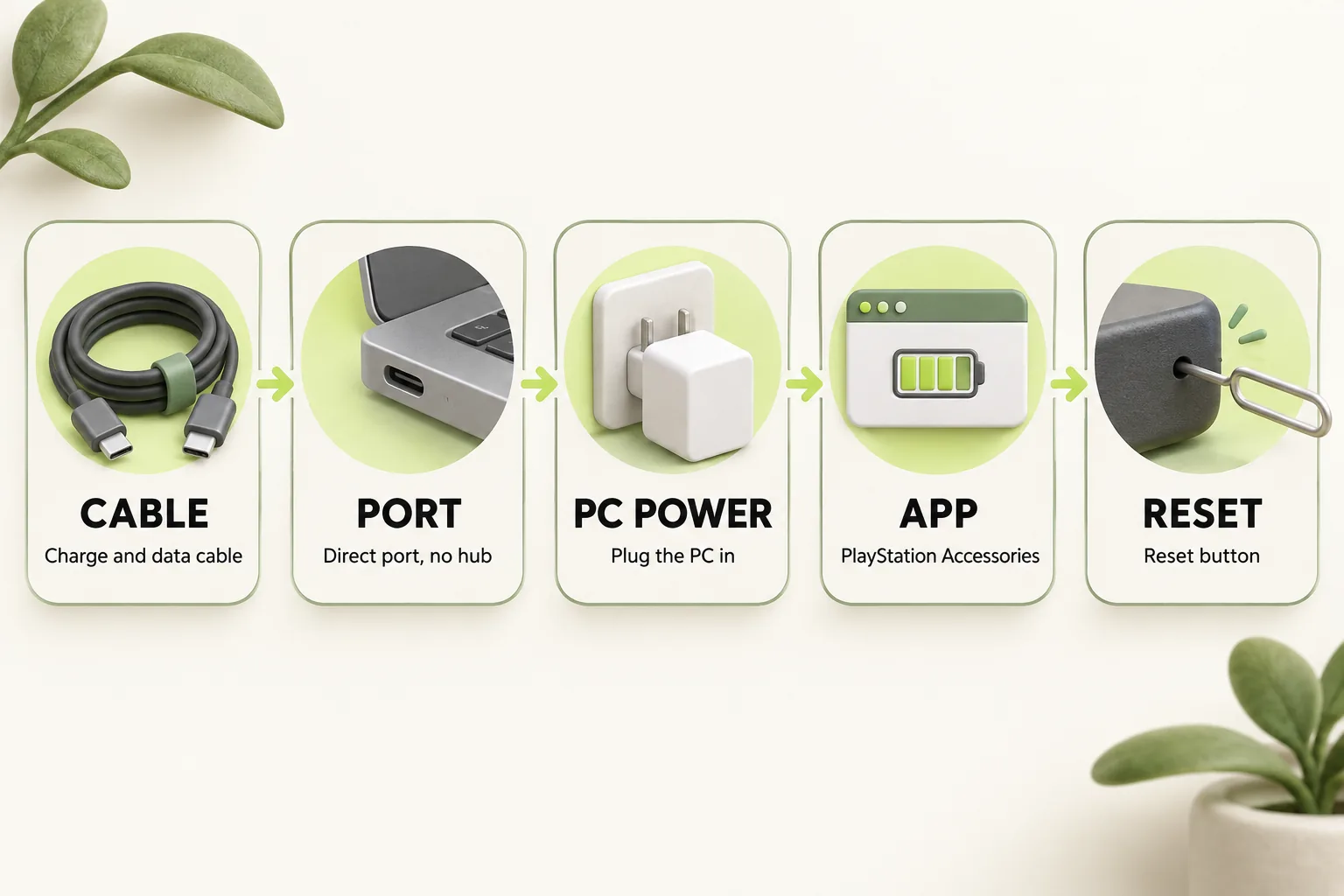
Follow these steps in order so each check gives you a clearer next move. Sony's warning that some devices may not charge the controller still applies, even when you use a suitable cable.
- Check the cable. Use a USB-standard charge and sync or charging and data cable with a Type-C connection for the controller. If the cable is labeled charge only, choose another cable.
- Check the connection. Plug the cable into a compatible port on the PC. If you are using an external hub or dock, try a compatible PC port directly, since Microsoft lists hubs and docks among possible USB-C trouble points.
- Check PC power. Plug the computer into external power and disconnect unused USB devices. These are Microsoft's general suggestions when a PC may not be providing enough power to a USB device.
- Check battery level. Connect the controller by USB and view its battery level in PlayStation Accessories. You can compare the level after it has remained connected; a later increase would suggest the controller received a charge.
- Check for updates. Update PlayStation Accessories and, if its firmware section shows Update, update the controller. Sony says to update one controller at a time and keep the PC on and the controller connected during the update.
- Reconnect, then consider a reset. Sony's app troubleshooting advises turning the controller off and reconnecting it. If the problem persists, its next step is pressing the reset button with a fine-tipped tool; Sony says this does not change pairing or profile settings.
Does Bluetooth pairing tell you anything about charging?
It tells you about a wireless connection, not the USB charging path. Sony supports both Bluetooth and USB connections for DualSense on Windows 10 (64-bit) and Windows 11. For Bluetooth pairing, Sony says to disconnect the USB cable, make sure the player indicator is off, hold the create and PS buttons until the light bar blinks, then select the controller from the PC's Bluetooth device list.
Game features are a separate question too. On PC, haptic feedback needs USB when the game supports it, and the headset jack needs a wired connection. Those requirements do not show whether the controller's battery is charging. If you later need help with console pairing after a reset, see the console pairing and reset guide.
How do you check firmware and decide when to seek help?
Sony's current PC firmware tool is PlayStation Accessories for Windows 10 (64-bit) or Windows 11. Its firmware section shows Update when a new version is available, and the app displays a connected controller's battery level. The app requires at least 250 MB of storage and a display resolution of 1280 x 800 or higher.
If you are connected by cable, removing it disconnects the controller and then turns it off, according to Sony's app page. Keep it connected while checking the battery and during any update. If the cable, PC power, app updates, reconnect, and reset steps do not resolve the issue, Sony directs PC users with persistent controller problems to the PlayStation Repairs diagnostic tool.
The bottom line
A DualSense can charge from a PC, but Sony says some devices may not charge it. Start with a suitable USB cable and compatible port, check PC power, then use PlayStation Accessories to review battery level and available updates. If Sony's reconnect and reset steps do not help, use its repair diagnostic.
How we researched this
This guide is built from Sony's official PlayStation Support pages and the DualSense instruction manuals, opened and checked on 16 October 2026. Search demand for "ps5 controller not charging when connected to pc" comes from SEMrush US keyword data captured in October 2026. We did not run our own device tests for this article, so every specific step, number and date is attributed to the source that states it. A first draft was prepared with AI writing assistance and then fact-checked line by line against those sources by the editorial team.
Our editorial policyYour questions, answered
why is my ps5 controller not charging when connected to pc?
The cable, PC connection, or available USB power may be the issue, and Sony says some devices might not charge a DualSense at all. Start by confirming that the cable meets Sony's charge and sync or charging and data guidance. Then try a compatible PC port and, following Microsoft's general USB advice, connect the computer to external power and unplug unused USB devices.
can you charge a ps5 controller with a pc?
Yes. The DualSense manual explicitly allows charging from a computer or another USB device with a USB-standard cable, while warning that some devices may not charge the controller. Use a compatible port and the cable type Sony specifies. If you need to check the result on a supported Windows PC, PlayStation Accessories shows the connected controller's battery level.
how do i know if my ps5 controller is charging on pc?
Check the connected controller's battery level in PlayStation Accessories and compare it after the controller has remained connected by USB. An increase would suggest it received a charge. Sony's PC app information does not give a PC light bar charging check, so avoid using Bluetooth pairing or game input alone to judge the charging result.
how to update ps5 controller on pc?
Use Sony's PlayStation Accessories app on Windows 10 (64-bit) or Windows 11. Connect the DualSense, then look at the firmware section; it shows Update when a new version is available. Sony says to update one controller at a time and not to turn off the PC or disconnect the controller while the update runs. The app itself should also be current.
does ps5 controller charge via bluetooth?
No. Sony describes charging through a USB cable connected to a computer or another USB device; Bluetooth pairing is a separate connection process. A controller that appears in the PC's Bluetooth device list has established a wireless connection, but that says nothing about USB charging. To investigate charging, connect it with a suitable cable and check the battery level in PlayStation Accessories.
Sources and further reading
- PlayStation Accessories (Windows PC app): Sony Interactive Entertainment ↗
- How to use DualSense wireless controllers with PC, Mac and mobile devices: PlayStation Support ↗
- PlayStation gaming on PC: PlayStation Support ↗
- How to connect a DualSense wireless controller: PlayStation Support ↗
- How to charge your controller or accessory on PlayStation consoles: PlayStation Support ↗
- DualSense Wireless Controller (CFI-ZCT1W) Instruction Manual: Sony Interactive Entertainment ↗
- Fix USB-C problems in Windows: Microsoft Support ↗