
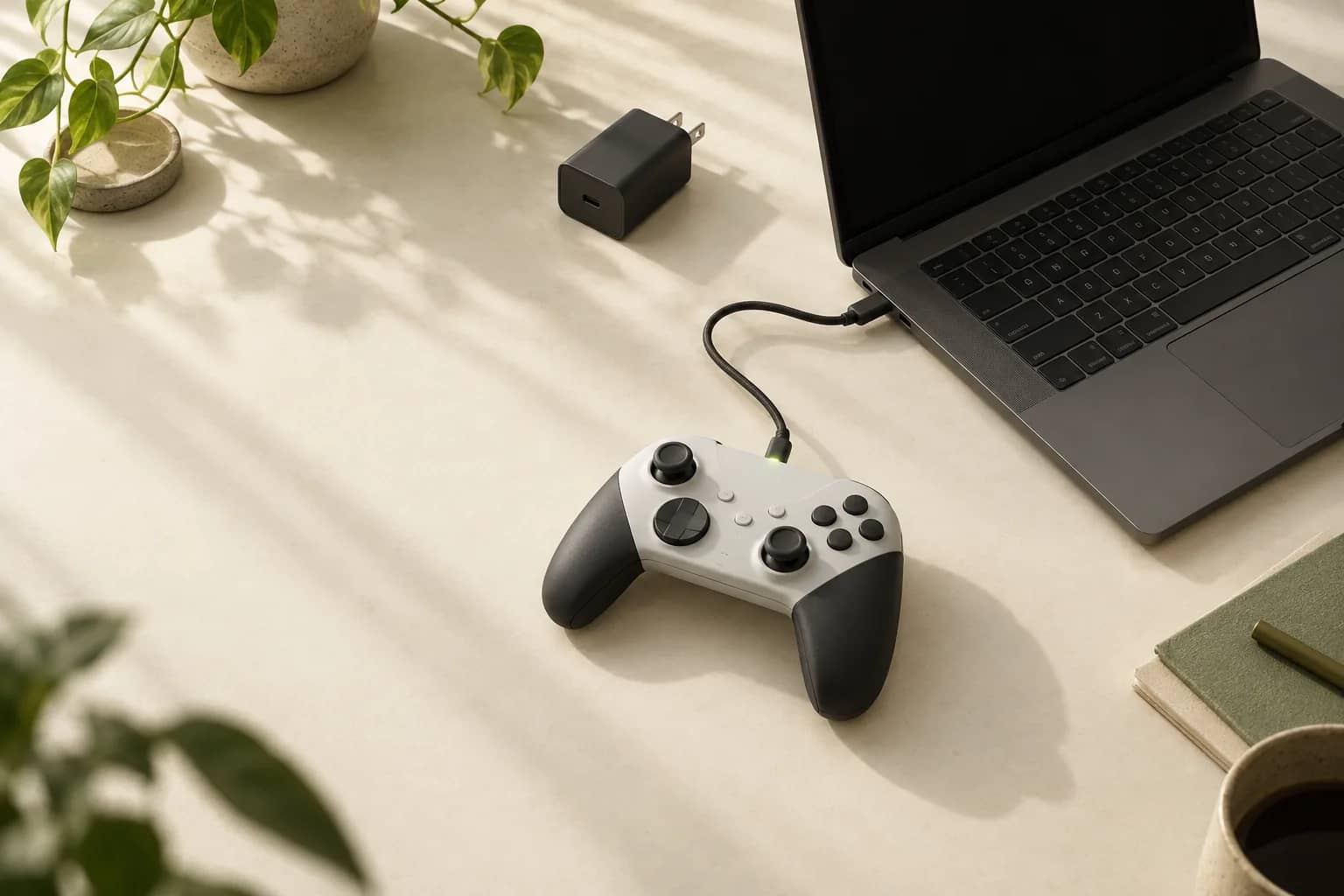
PS5 Controller Not Charging on PC? Check These First
A DualSense can charge through a computer, but some devices may not charge it. Check the cable, PC power, and battery level before deciding what to try next.
7 min read
EXPLORE THE TOPIC
In the Guides & Tips category, discover concise, officially documented solutions for setup, troubleshooting, controller connections, downloads, storage, and display settings. Each guide offers clear, step-by-step instructions and practical alternatives, ensuring you save time and money. Readers will find reliable, fact-based advice, with uncertain diagnoses clearly marked, to help you navigate narrow, specific gaming challenges efficiently. Check your platform’s official instructions before changing a setting.
A DualSense can charge through a computer, but some devices may not charge it. Check the cable, PC power, and battery level before deciding what to try next.
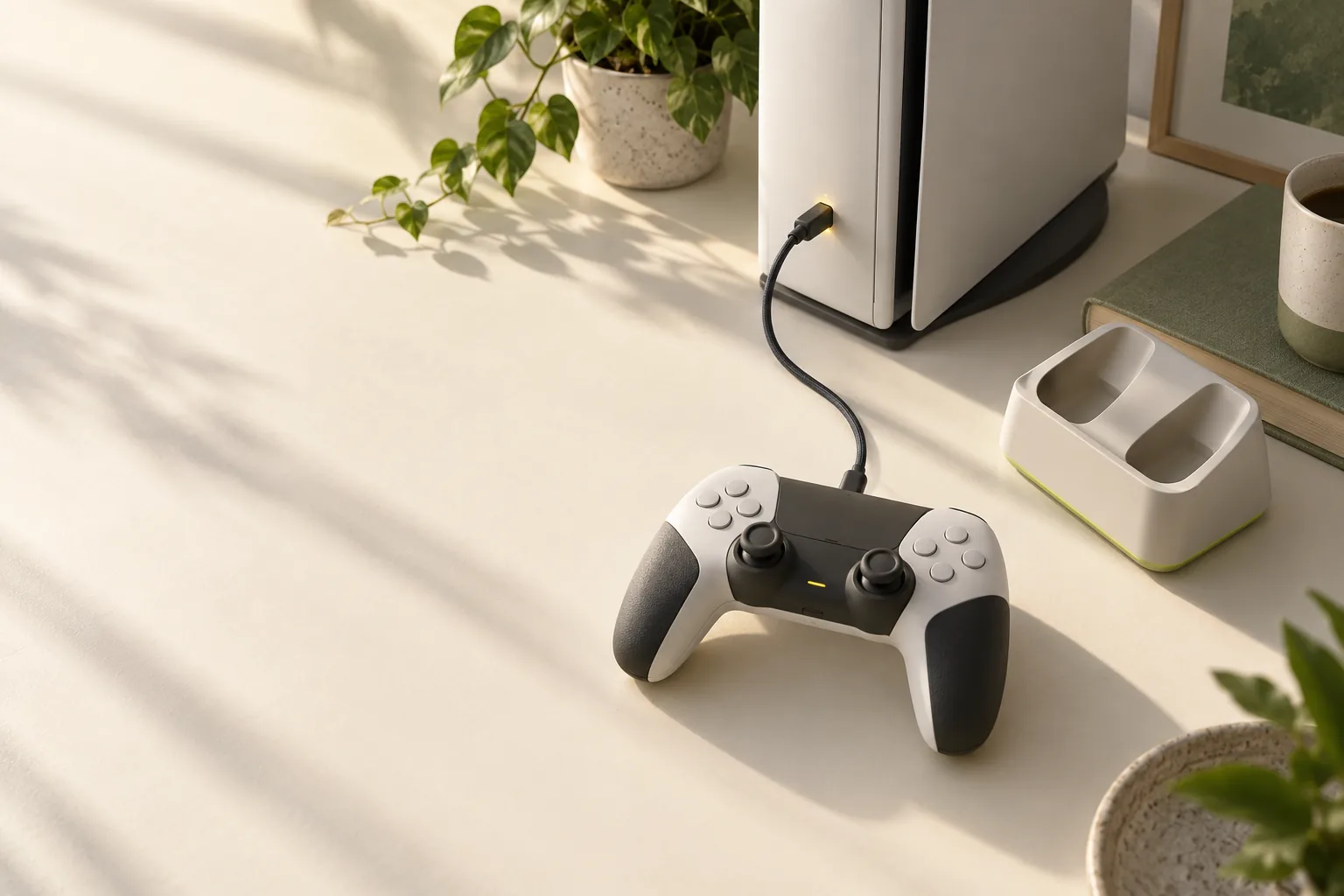
Start with the charging indicator and rest mode power setting. Then check the cable and console ports before considering battery service.
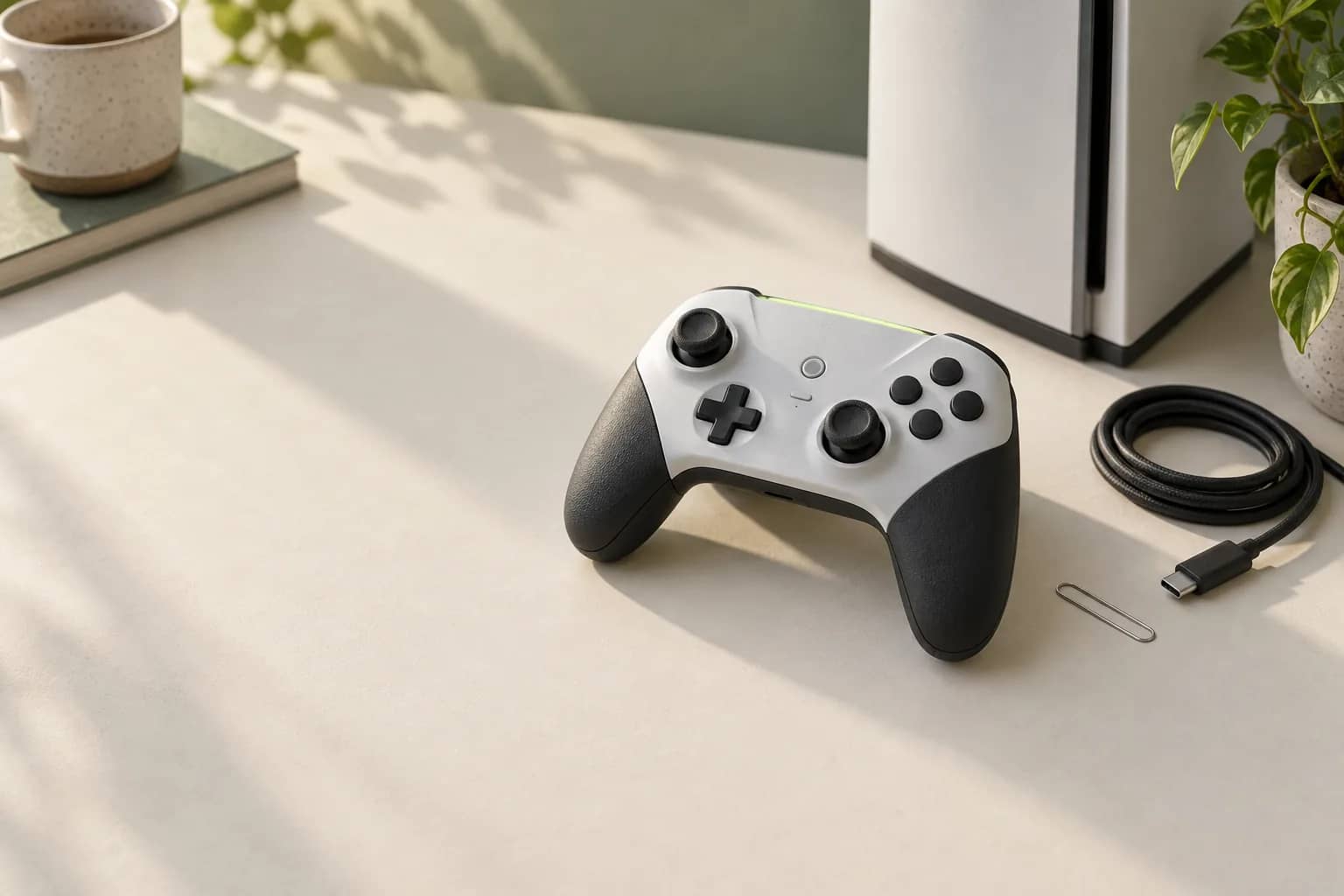
Start with the cable and pairing steps, then check the communication setting. Reset the DualSense only if those checks fail.
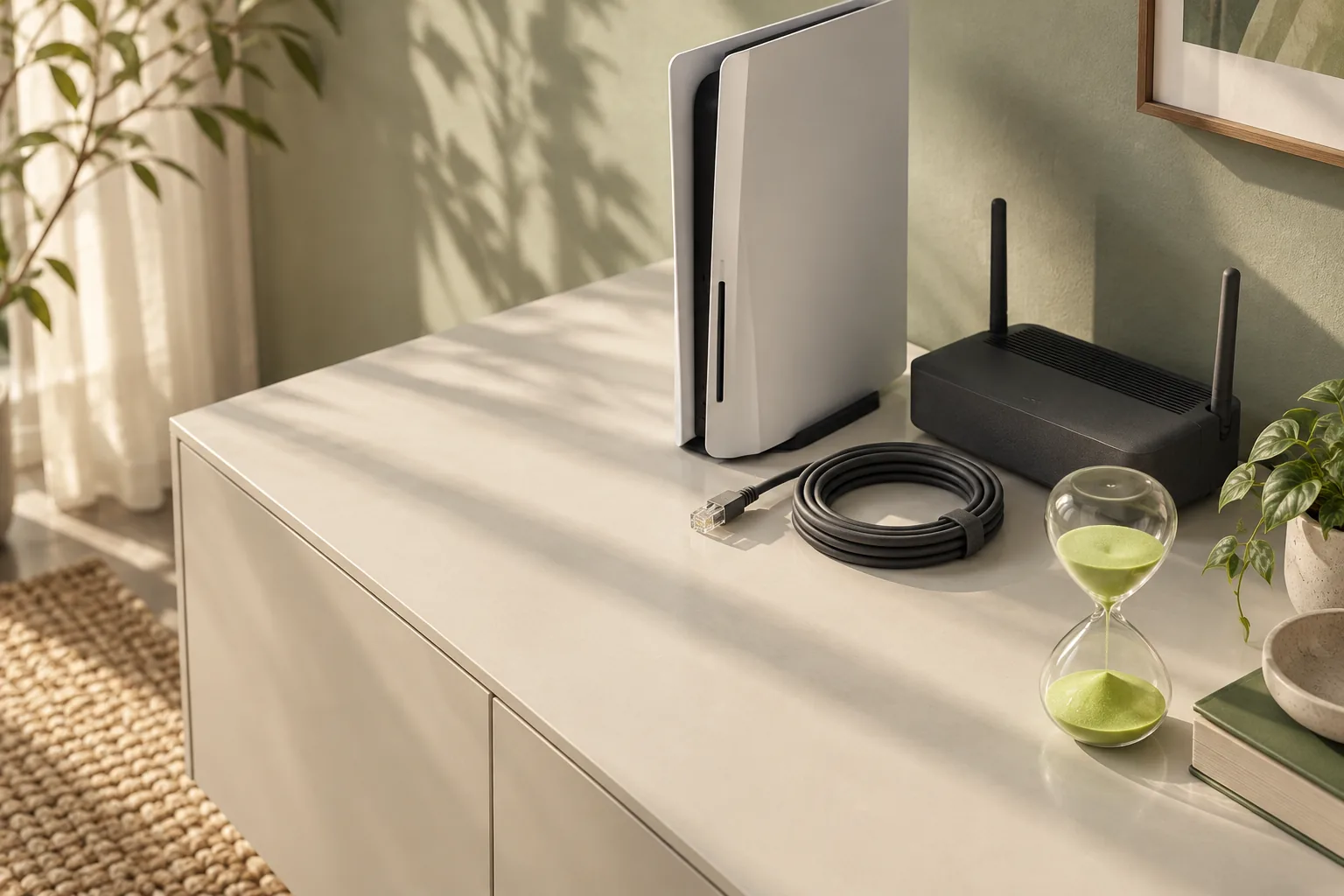
A slow PS5 download and a stuck download need different checks. Start with service status, then narrow the problem to the console or your local network.
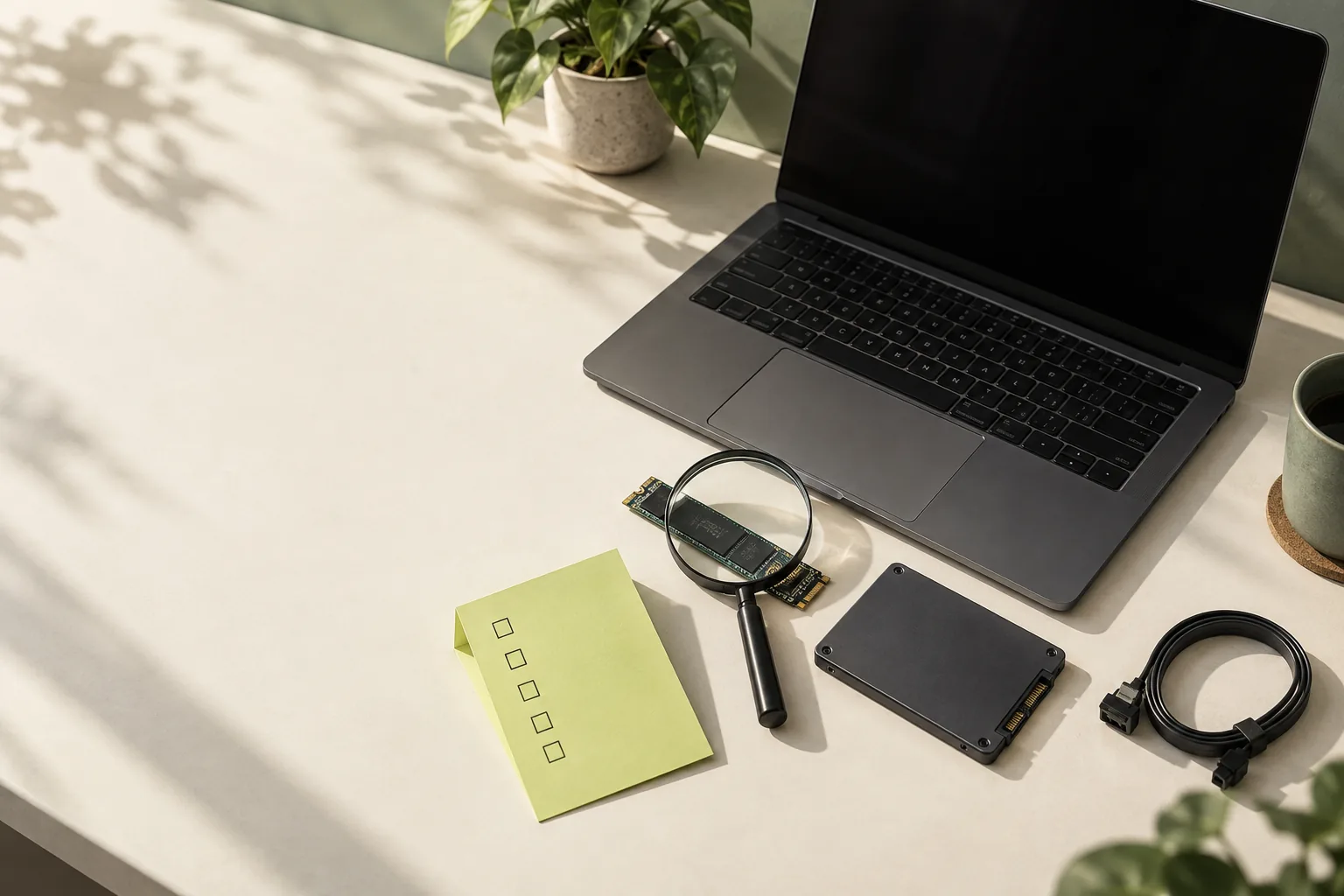
Start with a restart, cache clear, and library repair. If Steam still cannot install or update, test another drive before assuming the drive has failed.
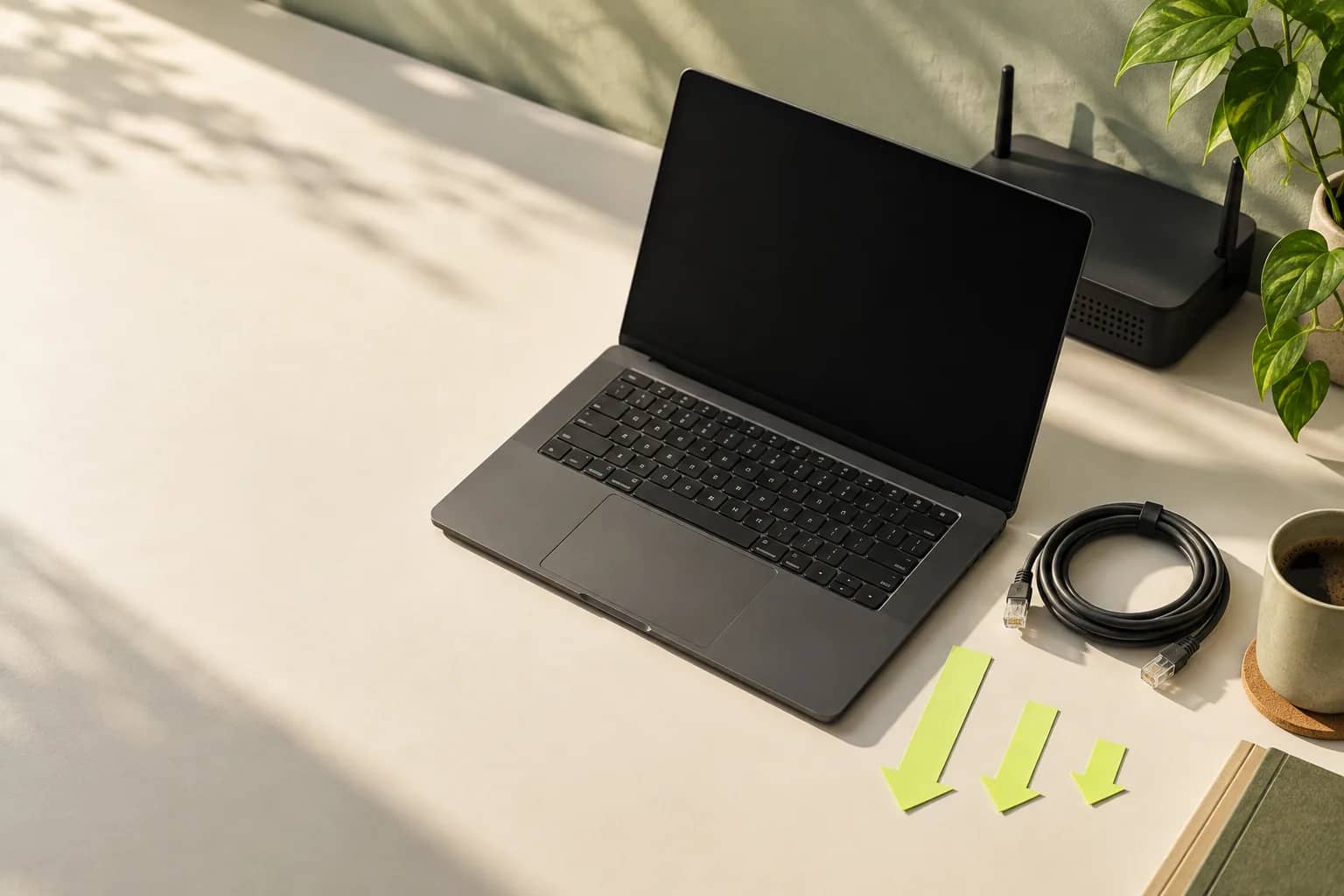
A slow Steam download may be a unit mismatch, an installation bottleneck, a setting, or a network issue. Find the next check before changing anything.