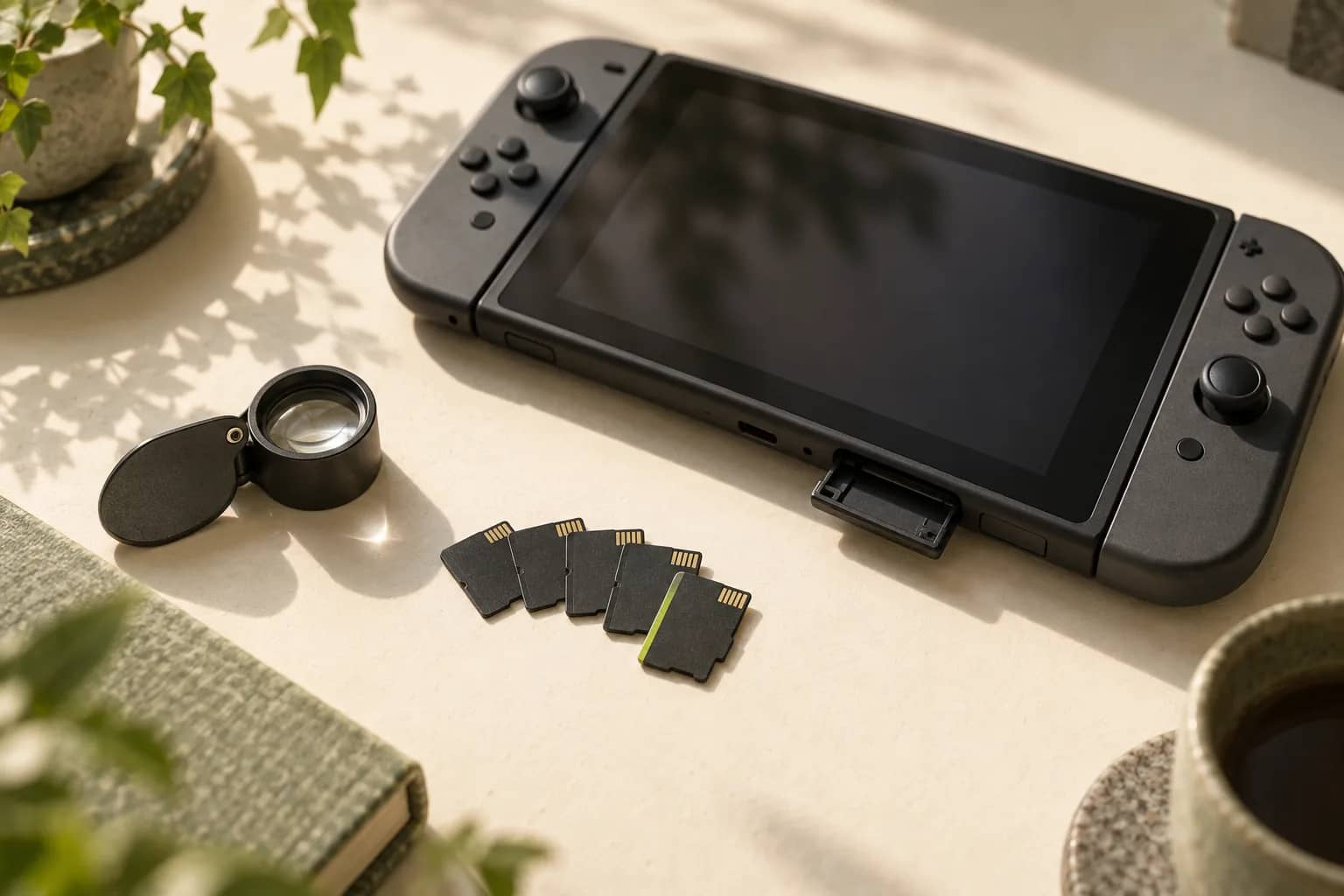
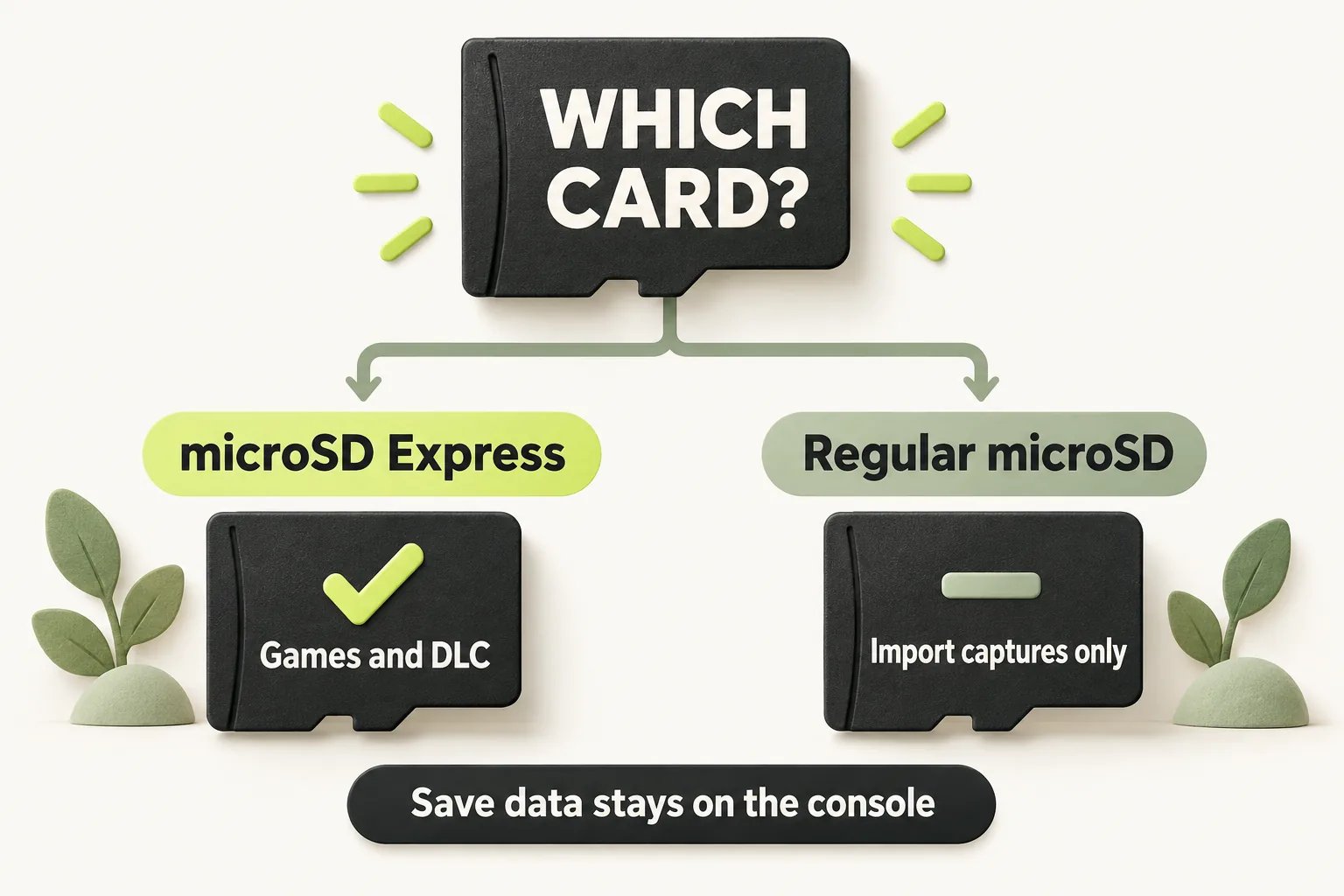
A switch 2 sd card must be microSD Express if you want to expand storage for downloadable games, updates, DLC, screenshots, or videos. A regular microSD card from your original Switch has a much narrower use: it can import your old screenshots and videos into Switch 2 system memory. The distinction matters before you buy a card or move one between consoles. Nintendo Switch 2 also has 256 GB of internal UFS storage, with part reserved for the system, so you can decide whether you need additional space without assuming every card in your drawer will work.
What kind of SD card does Switch 2 use?
Nintendo says Switch 2 is compatible with microSD Express cards only. That requirement applies to storing downloadable software, software update data, DLC, screenshots, and captured videos on a card. If a listing says only microSD, check it more closely before buying: the word Express is the compatibility detail you need.
Switch 2 has 256 GB of internal UFS storage, though Nintendo says part is reserved for the system. A card is sold separately, so the practical choice is whether the available internal storage meets your needs or you want more room for supported game data and captures. If you are comparing handheld purchases more broadly, see another handheld storage and screen decision.
MicroSD Express is a different standard from regular microSD. The SD Association says SD Express uses PCIe and NVMe while maintaining a UHS-I interface. That shared interface does not change Nintendo's compatibility rule for Switch 2 game storage.
Can you use an old Switch microSD card on Switch 2?
Yes, but only to import screenshots and videos from your original Switch. Insert the old card into Switch 2 and select 'Import from a Nintendo Switch microSD Card'. The captures are imported to Switch 2 system memory. Nintendo says a regular microSD card cannot be used on Switch 2 for any other purpose.
Putting that old card into Switch 2 will not let you save or load digital games or save data from it. If your aim is more space for Switch 2 downloads, you need a microSD Express card. If your aim is to bring over captures, the old card has a useful, limited role.
A microSD Express card can also work in an original Nintendo Switch, where it reads and writes at regular microSD speed. That does not make a regular microSD card suitable for Switch 2 game storage. Compatibility depends on which type of card you have and what you want the console to do with it.
Where do games, captures, and save files go?
The word save can make this confusing. Downloadable software can be stored on a microSD Express card, but game save data stays in System Memory. Nintendo says game save data cannot be copied or saved to the card. Buying more card space therefore does not create card storage for your progress.
| What you want to do | Regular microSD on Switch 2 | microSD Express on Switch 2 |
|---|---|---|
| Store downloadable software, updates, or DLC | Cannot be used for this | Can store this data |
| Store new screenshots and captured videos | Cannot be used for this | Can store these captures |
| Import screenshots and videos from an original Switch | Can import them to system memory | Not needed for this import |
| Store game save data | Cannot store it | Cannot store it; saves stay in System Memory |
When you insert a microSD Express card, it becomes the default save location for downloadable software. Here, save location means where that software is stored; it does not change where game save data lives. Nintendo also says screenshots and captured videos can move between system memory and the card in both directions.
This distinction helps when you are trying to free space. Moving supported software or captures concerns storage for those files, while your game progress remains in System Memory. For a problem involving storage write errors on PC, use guidance for that platform rather than assuming the Switch 2 card rules explain it.
How can you check a card before buying?
Look for the microSD Express designation. Nintendo shows a microSD logo with an EX mark and says microSD Express cards have that logo. The mark helps you identify the standard; it does not promise a particular experience with a specific card.
Nintendo's stated capacity limit is up to 2 TB. Its published requirement does not name a minimum read or write speed or an SD Express Speed Class, so there is no Nintendo speed threshold to use as a shopping filter here. The SD Association lists different speeds for versions of the standard and says real card speed varies with the card.
A request for the best SD card for Switch 2 has no supported brand or speed winner here. Start with the documented compatibility requirement, then consider how much supported data you expect to store. That gives you a useful purchase check without treating a label or a theoretical speed as a performance result.
What should you expect when you start using a card?
The first time you use a microSD Express card on Switch 2, Nintendo requires a system update via the internet. Account for that step when you plan to use a new card. After insertion, the card becomes the default location for downloadable software, while game save data continues to stay in System Memory.
Nintendo recommends using a single microSD Express card. Software saved across multiple cards cannot later be combined onto one card, so choosing a capacity you expect to keep using can make future storage decisions simpler. This is especially relevant if you are considering several smaller cards instead of one card.
If you are moving from an original Switch, handle the two needs separately: use the old regular microSD card to import eligible captures, and use microSD Express for supported Switch 2 storage. The capture import places those files in Switch 2 system memory; inserting the old card does not turn it into a game storage card.
The bottom line
For more Switch 2 game and capture storage, choose microSD Express, up to Nintendo's stated 2 TB limit. Keep the old Switch card for importing screenshots and videos, and remember that game save data stays in System Memory regardless of which card you use.
How we researched this
This explainer is built from Nintendo's official support articles and Switch 2 tech specs, plus SD Association documentation, opened and checked on 16 October 2026. Search demand for "switch 2 sd card" comes from SEMrush US keyword data captured in October 2026. We did not run our own device tests for this article, so every specific step, number and date is attributed to the source that states it. A first draft was prepared with AI writing assistance and then fact-checked line by line against those sources by the editorial team.
Our editorial policyYour questions, answered
What SD card does Switch 2 use?
Switch 2 uses microSD Express cards for supported card storage, including downloadable software, updates, DLC, screenshots, and captured videos. Nintendo identifies these cards with a microSD logo and an EX mark. A regular microSD card has only the limited Switch capture import use, so check the card's designation before buying it for expanded storage.
Can I use my old Switch SD card on Switch 2?
You can use an old regular microSD card to import screenshots and videos from your original Switch. Insert it into Switch 2 and select 'Import from a Nintendo Switch microSD Card'; the captures go to Switch 2 system memory. The old card cannot serve as storage for Switch 2 digital games or save data.
What is the max SD card size for Switch 2?
Nintendo lists support for microSD Express cards up to 2 TB. The capacity limit applies to the compatible card type, so size alone does not make a regular microSD card suitable for Switch 2 storage. Nintendo has not provided an exact figure for usable space within the console's 256 GB of internal UFS storage.
Are Switch 2 save files stored on the SD card?
No. Game save data is stored in System Memory and cannot be copied or saved to a microSD Express card. A card can hold downloadable software and other supported data, but the phrase default save location for downloads refers to that software, not your game progress. Keep those two kinds of data separate when planning storage.
How do I know if an SD card is microSD Express?
Check for the microSD Express designation and the microSD logo with an EX mark shown by Nintendo. The mark identifies the standard Switch 2 requires for supported card storage. It does not establish how fast a particular card will perform, and Nintendo does not publish a minimum speed requirement for Switch 2 cards.
Sources and further reading
- microSD Card and microSD Express Card Compatibility with Nintendo Switch 2 and Nintendo Switch: Nintendo Support ↗
- microSD Express Card FAQ: Nintendo Support ↗
- Nintendo Switch 2 Tech Specs: Nintendo ↗
- About microSD Express cards: Nintendo ↗
- Bus Speed (Default Speed/High Speed/UHS/SD Express): SD Association ↗
- New SD Express Specifications Introduce New Speed Classes: SD Association ↗
- FAQ: SD Association ↗